




FAQ's
Why does my image need to be reduced to 600 KB or lower?
A 600 KB limit may be specified when an upload system restricts the maximum size of an image. Reducing the file below that limit can prevent size-related upload errors while keeping the image reasonably compact. The required target should always be based on the destination's stated limit rather than an assumed value.
What if my image is 601 KB or 602 KB?
If the destination has a strict 600 KB maximum, even a file that is only slightly larger may be rejected. In that situation, a small additional reduction can bring the file below the required limit. Always check the size of the final downloaded file rather than assuming it is within the limit.
Why does my image jump from above 600 KB to far below it?
Compression does not always produce a predictable reduction in small increments. A change in quality or encoding can sometimes result in a much smaller file than expected. If the resulting file is well below 600 KB, inspect its appearance before deciding whether the reduction was appropriate.
Why does reducing quality sometimes make the file much smaller?
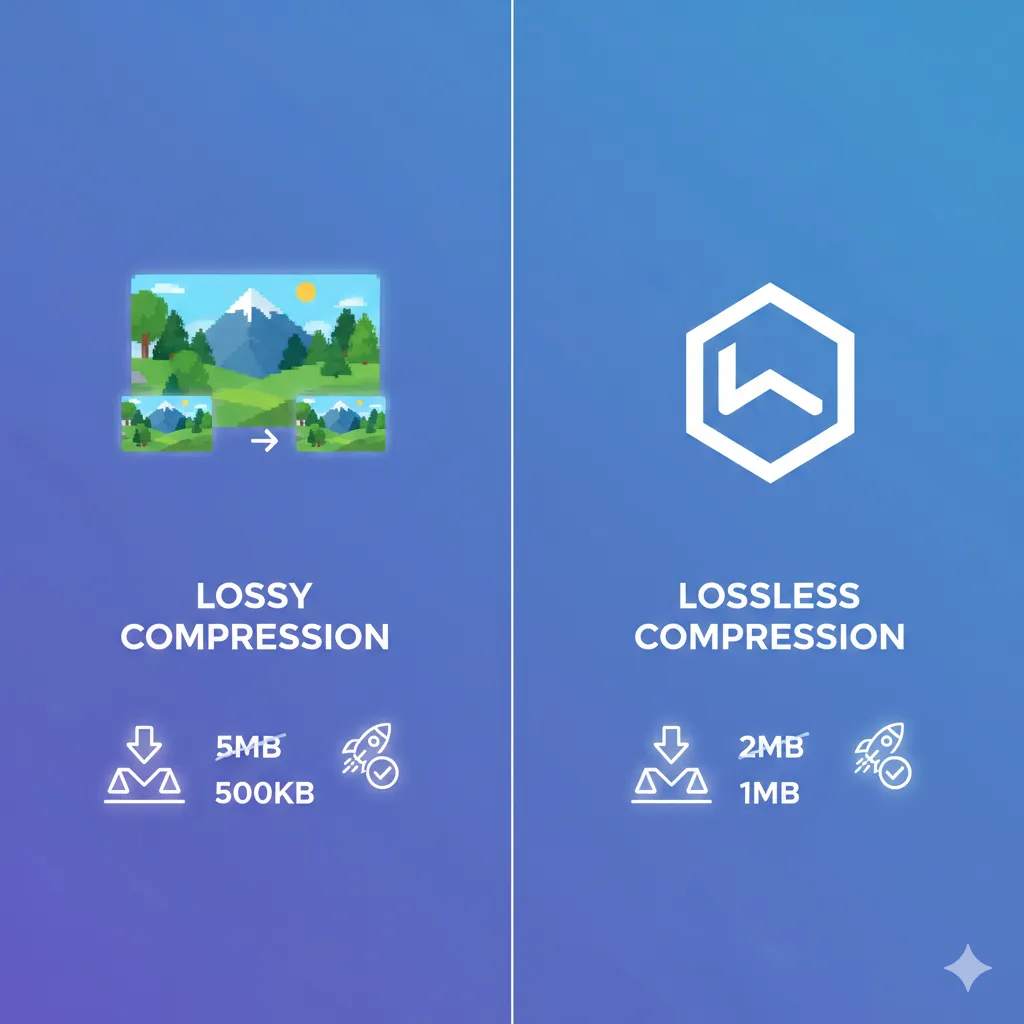
Image quality settings control how much visual information is retained during compression. A relatively small change in quality can sometimes remove enough data to produce a noticeable difference in file size. The effect varies according to the original image, its format, and its visual complexity.
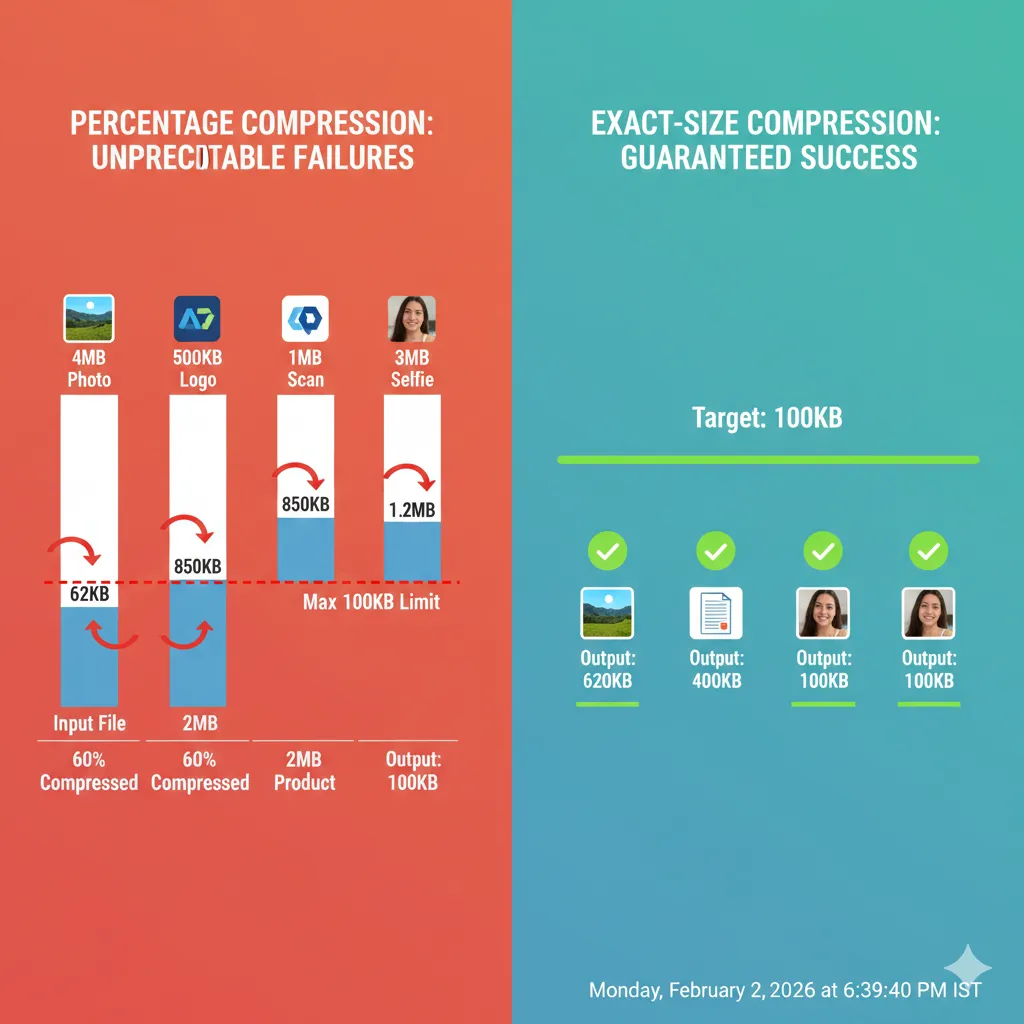
Why doesn't reducing the quality by the same amount produce the same file size for every image?
A quality setting is not a fixed file-size percentage. Different images contain different amounts of detail, colors, textures, and other information, so the same setting can produce very different output sizes. This is why one image may reach 600 KB easily while another remains larger.
Can metadata make an image exceed the 600 KB limit?
Image files can contain additional information such as camera details, location information, editing information, thumbnails, and color profiles. Depending on the file, this extra data can contribute to its overall size. When a file is very close to a strict limit, the complete file size matters, not just the visible image content.
Why does rotating or editing an image sometimes change its file size?
Opening and saving an image again can cause it to be encoded differently from the original. Even when the visible dimensions remain unchanged, the new file can have a different size because of changes in compression, metadata, or format settings. This is why an edited image may need to be checked again against the 600 KB limit.
What if the compressed image looks lower in quality than I expected?
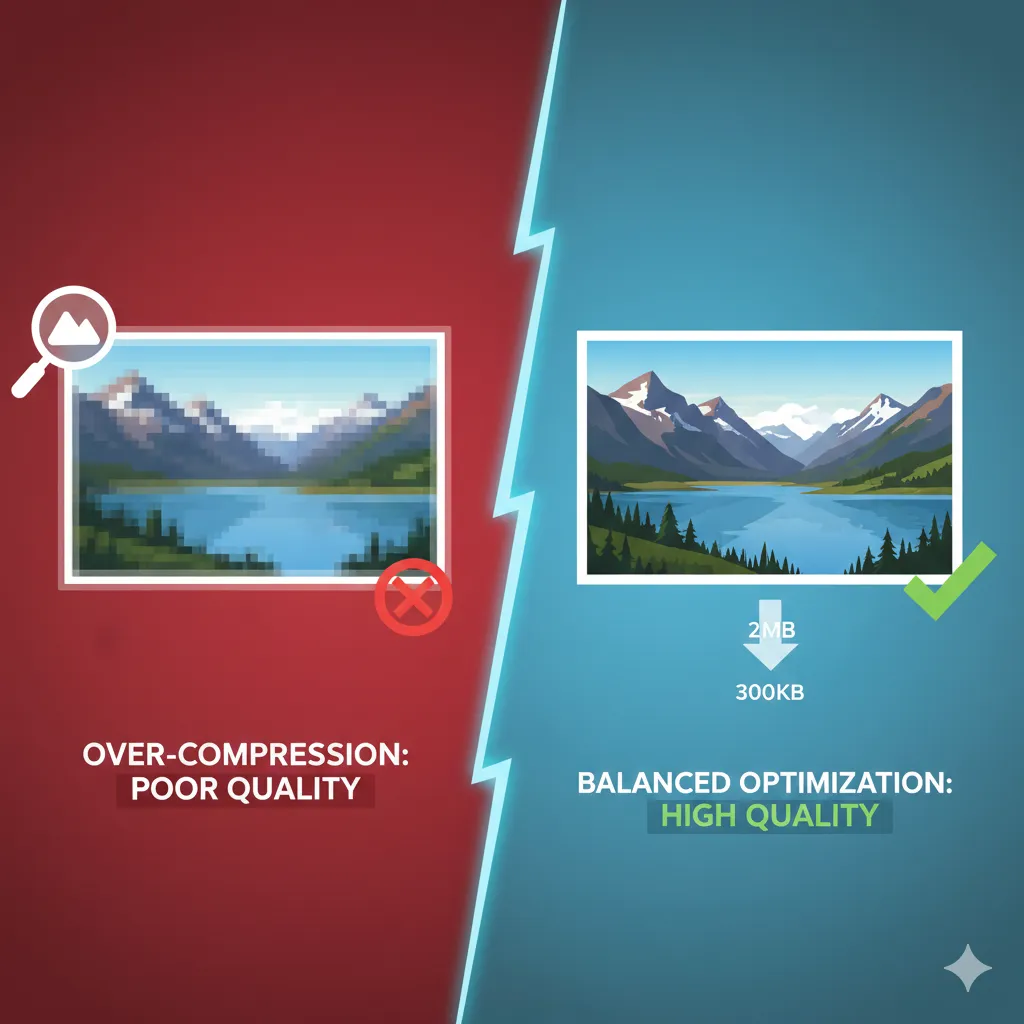
The tool automatically adjusts the compression to work toward the 600 KB target, so the amount of visual change can vary depending on the original image. Images with more detail may show greater changes when a significant reduction is required. If the result does not retain the level of detail you need, check whether the destination allows a larger file-size limit.
Why does a transparent image behave differently when compressed to 600 KB?
Transparency can affect which image format is practical and how the file is encoded. Converting a transparent image to a format that does not support transparency can also change its appearance. If transparency is important, verify that the chosen output format preserves it before using the compressed file.
Why does my image have a different file size after downloading it?
The downloaded version is the file you should evaluate for the final upload. Its size can differ from the original file because compression and encoding create a new image file. Check the downloaded copy itself rather than comparing the target only with the size of the original.
Why does a small change in dimensions sometimes make a big difference in file size?
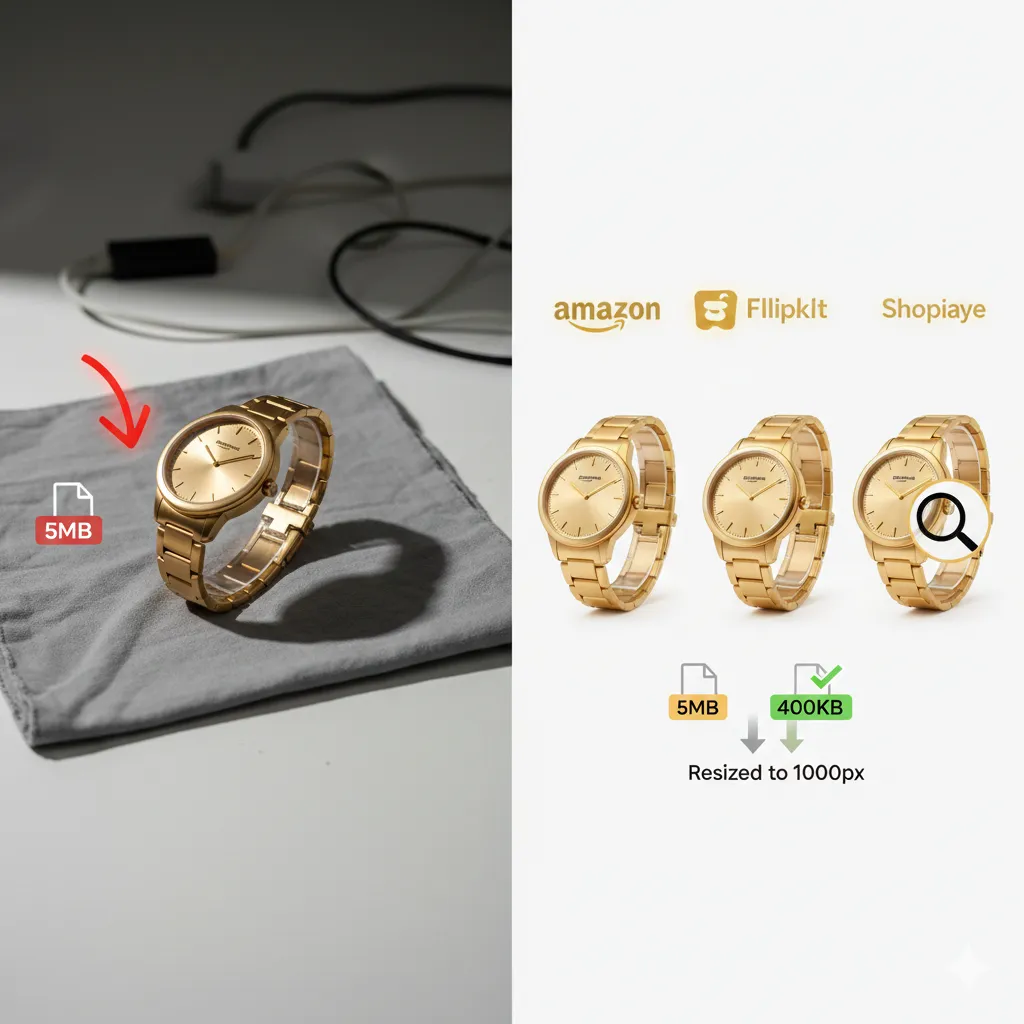
Changing width and height changes the number of pixels that need to be stored. Even a moderate reduction in both dimensions can therefore remove a substantial amount of image data. This can be useful when compression alone is not enough to bring a large image below 600 KB.
Can an image become larger again after I edit the 600 KB version?
Yes. Editing, adding content, or changing the format of a compressed image can increase its file size. If you make further changes to the 600 KB version, check the new file size again to confirm that it still meets your required limit.
What is the safest way to prepare an image when 600 KB is a hard maximum?
Start with the original image and determine whether its dimensions are appropriate for the intended use. Compress it toward the 600 KB limit, then check the actual downloaded file size and inspect important visual details. If the result is still above the limit or has unacceptable quality, adjust the dimensions, format, or compression level rather than repeatedly compressing the same output.